Jak naładować telefon w Tesli
Ładowanie telefonu w Tesli jest zazwyczaj proste. W zależności od modelu Tesli i roku produkcji, możesz użyć wbudowanej bezprzewodowej ładowarki lub podłączyć telefon do portu USB za pomocą kabla do ładowania. Najlepsza opcja zależy od twojego telefonu, pojazdu i tego, jak chcesz używać telefonu podczas jazdy.
Ten przewodnik wyjaśnia jak ładować telefon w Tesli, gdzie znaleźć porty USB, jak ładować iPhone'a oraz co sprawdzić, jeśli twój telefon nie ładował się.

Jak ładować telefon w Tesli?
Istnieją dwa główne sposoby ładowania telefonu w Tesli: ładowanie bezprzewodowe i ładowanie przewodowe przez port USB.
Użyj wbudowanej ładowarki bezprzewodowej
Jeśli twoja Tesla ma wbudowaną ładowarkę bezprzewodową, ładowanie jest proste:
-
Upewnij się, że twój telefon obsługuje ładowanie bezprzewodowe Qi.
-
Usuń klucze, monety, karty lub inne przedmioty z obszaru ładowania.
-
Umieść telefon bezpośrednio na podkładce ładującej.
-
Upewnij się, że telefon jest wyśrodkowany i pozostaje w kontakcie z podkładką.
-
Sprawdź swój telefon, aby potwierdzić, że ładowanie się rozpoczęło.
Obecne Podręczniki Tesli Model 3 oraz Model Y wymieniają zintegrowane ładowarki bezprzewodowe, które zapewniają do 15W lub więcej dla telefonów obsługujących Qi, w zależności od konfiguracji pojazdu.
Twój telefon może być ciepły podczas ładowania. Może to być normalne w przypadku ładowania bezprzewodowego. Gruba lub metalowa obudowa telefonu może również uniemożliwić prawidłowe ładowanie, więc warto spróbować zdjąć obudowę, jeśli ładowanie się nie rozpoczyna.
Ładuj telefon za pomocą kabla USB
Możesz również użyć portu USB, jeśli wolisz połączenie przewodowe.
Podłącz kompatybilny kabel do ładowania do jednego z portów USB w pojeździe, a następnie podłącz drugi koniec do swojego telefonu. Połączenie przewodowe może być przydatne, gdy twój telefon potrzebuje zasilania, a ładowanie bezprzewodowe nie jest dostępne lub nie działa dobrze.
Użyj wysokiej jakości, kompatybilnego kabla. Tesla zauważa, że niezgodne kable USB mogą powodować wolniejsze ładowanie lub problemy z połączeniem.
Gdzie znajdują się porty USB w Tesli?
Lokalizacje USB różnią się w zależności od modelu i roku produkcji. Poniższa tabela podaje wspólne lokalizacje w aktualnych konfiguracjach Tesli. Zawsze sprawdzaj podręcznik właściciela swojego pojazdu, jeśli wnętrze różni się.
|
Model Tesli |
Typowe lokalizacje ładowania USB |
|
Model 3 |
Przedni środkowy konsola, tylna środkowa konsola i schowek w zależności od wersji |
|
Model Y |
Przedni środkowy konsola, tylna środkowa konsola i schowek; niektóre wersje 6-osobowe mają dodatkowe tylne porty USB-C |
|
Model S |
Przedni środkowy konsola, poniżej tylnego ekranu dotykowego i schowek |
|
Model X |
Środkowa konsola z przodu, poniżej tylnego ekranu dotykowego i schowek |
Na przykład, aktualne instrukcje Modelu 3 i Modelu Y wymieniają cztery porty USB, w tym porty USB-C w konsoli centralnej i port USB-A w schowku. Instrukcje Modelu S i Modelu X wymieniają pięć portów USB, w tym z przodu, z tyłu i w schowku.
Jak naładować telefon w Tesla Model 3
Jeśli masz Model 3, zazwyczaj możesz ładować telefon bezprzewodowo lub przez port USB, w zależności od wyposażenia pojazdu i roku modelowego.
Ładowanie bezprzewodowe
Dla wersji Modelu 3 z bezprzewodowym ładowaniem telefonu, umieść telefon zgodny z Qi bezpośrednio na podkładce ładującej w przedniej konsoli.
Trzymaj telefon płasko i upewnij się, że nic nie znajduje się pomiędzy telefonem a powierzchnią ładującą. Tesla również zaleca usunięcie metalowych przedmiotów i kart NFC z obszaru ładowania, ponieważ mogą one zakłócać ładowanie lub ulec uszkodzeniu.
Ładowanie przez port USB
Możesz również podłączyć telefon do portu USB za pomocą kompatybilnego kabla. Aktualne konfiguracje Modelu 3 mają porty ładowania USB-C w konsoli centralnej, a także dodatkowy port USB-A w schowku. Porty USB-C z tyłu są również dostępne do ładowania urządzeń pasażerów.
Jeśli Twój Model 3 ma inną konfigurację wnętrza, sprawdź instrukcję obsługi dla swojego konkretnego roku modelowego przed szukaniem portu.
Jak naładować telefon w Tesla Model Y
Model Y również oferuje opcje ładowania bezprzewodowego i USB, chociaż dokładna konfiguracja może się różnić w zależności od wersji.
Użyj podkładki do ładowania bezprzewodowego
Jeśli Twój Model Y ma wbudowaną ładowarkę bezprzewodową, umieść swój telefon zgodny z Qi bezpośrednio na jednej z podkładek ładujących w przedniej konsoli.
Trzymaj telefon w linii z obszarem ładowania. Jeśli nie zacznie się ładować, usuń grubą lub metalową obudowę i sprawdź, czy nie ma przedmiotów pomiędzy telefonem a podkładką ładującą. Instrukcja Modelu Y Tesli zawiera to samo ostrzeżenie dotyczące obudów, metalowych przedmiotów i kart NFC.
Użyj portu USB
Możesz podłączyć swój telefon do portu USB-C w konsoli centralnej lub innego dostępnego portu ładowania USB.
Aktualne konfiguracje Modelu Y mają porty ładowania USB-C w konsoli centralnej oraz dodatkowe porty USB dla pasażerów z tyłu. Port USB-A w schowku może również łączyć się z urządzeniami USB. Niektóre konfiguracje z sześcioma miejscami mają dodatkowe porty USB-C poniżej siedzeń trzeciego rzędu.
Co zrobić, jeśli ładowarka telefonu w Modelu Y nie działa?
Rozpocznij od prostych kontroli:
-
Przesuń telefon na środek podkładki ładującej.
-
Usuń grubą lub metalową obudowę telefonu.
-
Usuń klucze, monety, karty lub inne przedmioty z obszaru ładowania.
-
Spróbuj innego kabla USB, jeśli ładujesz przez kabel.
-
Spróbuj innego portu USB.
-
Sprawdź, czy pojazd jest aktywny i dostarcza energię.
Jeśli telefon nadal się nie ładuje, problem może leżeć w telefonie, kablu, porcie ładowania lub sprzęcie pojazdu, a nie w samej metodzie ładowania.
Jak naładować iPhone'a w Tesli
Ładowanie iPhone'a w Tesli działa podobnie jak ładowanie innych kompatybilnych telefonów.
Ładowanie iPhone'a bezprzewodowo
Jeśli Twój iPhone obsługuje ładowanie bezprzewodowe Qi, umieść go bezpośrednio na podkładce do ładowania bezprzewodowego Tesli.
Aby uzyskać najlepsze połączenie, trzymaj telefon na środku i usuń wszystko, co może blokować kontakt między telefonem a podkładką ładującą. Jeśli używasz grubego lub metalowego etui, spróbuj ładować bez niego.
Ładowanie iPhone'a za pomocą kabla
Możesz również ładować iPhone'a za pomocą kompatybilnego kabla USB.
Kabel, którego potrzebujesz, zależy od twojego iPhone'a i portu USB dostępnego w twoim Tesli. Nowsze iPhone'y używają USB-C, podczas gdy starsze modele mogą używać złącza Lightning.
Ustawienie przewodowe może być przydatne, gdy chcesz mieć bezpośrednie połączenie lub gdy twój telefon nie pozostaje w odpowiedniej pozycji na podkładce do ładowania bezprzewodowego.
Dlaczego mój telefon nie ładuje się w mojej Tesli?
Jeśli twój telefon się nie ładuje, sprawdź te powszechne problemy, zanim założysz, że ładowarka Tesli jest uszkodzona.
Telefon nie jest w odpowiedniej pozycji
Ładowanie bezprzewodowe wymaga, aby telefon miał odpowiedni kontakt z obszarem ładowania. Jeśli telefon jest zbyt daleko na jeden bok, przesuń go w kierunku środka podkładki.
Jest to szczególnie ważne, gdy telefon się porusza podczas jazdy pojazdem.
Twoje etui na telefon jest zbyt grube
Grube etui może zwiększyć odległość między telefonem a podkładką ładującą. Metalowe etui lub akcesoria mogą również zakłócać ładowanie bezprzewodowe.
Spróbuj zdjąć etui i umieścić telefon bezpośrednio na ładowarce. Tesla szczególnie zauważa, że etui na telefon, które jest zbyt duże lub wykonane z metalu, może uniemożliwić prawidłowe działanie ładowarki bezprzewodowej.
Coś jest między telefonem a ładowarką
Sprawdź obszar ładowania pod kątem:
-
Klucze
-
Monety
-
Metalowe przedmioty
-
Karty
-
Karty NFC
Tesla zaleca usunięcie tych przedmiotów przed ładowaniem bezprzewodowym. Karty NFC, w tym niektóre karty dostępu i karty płatnicze, mogą również ulec uszkodzeniu w wyniku procesu ładowania.
Kabel USB lub port są problemem
Jeśli używasz ładowania przewodowego, spróbuj innego kompatybilnego kabla i innego portu USB.
Uszkodzony lub niezgodny kabel może powodować wolne ładowanie lub problemy z połączeniem. Tesla również odradza używanie huba USB do podłączania wielu urządzeń, ponieważ może to zakłócać ładowanie i rozpoznawanie urządzeń.
Ładowanie bezprzewodowe vs. ładowanie USB w Tesli
|
Ładowanie bezprzewodowe |
Ładowanie USB |
|
|
Ustawienie |
Umieść telefon na podkładce ładującej |
Podłącz kabel ładujący |
|
Kabel potrzebny |
Nie |
Tak |
|
Najlepsze dla |
Proste codzienne ładowanie |
Bezpośrednie ładowanie przewodowe |
|
Pozycja telefonu |
Musisz pozostać wyrównanym z podkładką |
Bardziej elastyczne |
|
Typowy problem |
Problemy z etui lub wyrównaniem |
Problemy z kablem lub portem |
Do codziennego użytku ładowanie bezprzewodowe jest wygodne, ponieważ możesz ładować telefon bez podłączania kabla. Ładowanie przez USB zapewnia fizyczne połączenie i może być lepszym wyborem, gdy ładowanie bezprzewodowe nie jest dostępne lub gdy telefon nie pozostaje w odpowiedniej pozycji względem podkładki ładującej.
Jak utrzymać telefon w zasięgu ręki podczas ładowania
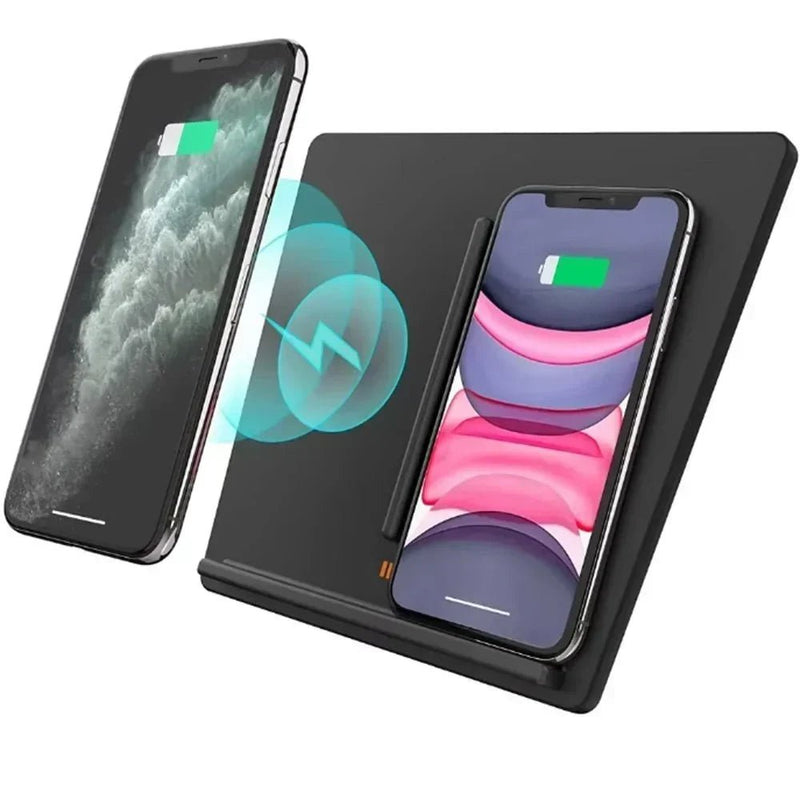
Jeśli chcesz ulepszyć system ładowania w swoim konsoli centralnej, dedykowana stacja ładująca może dodać zarówno ładowanie bezprzewodowe, jak i USB-C. Smart Touch Center Console Wireless Charging Dock jest zaprojektowany dla Tesla Model Y Juniper 2025+ i Model 3 Highland 2024+ i łączy ładowanie bezprzewodowe z dwoma portami ładowania USB-C.
Użyj wbudowanej podkładki ładującej Tesli
Wbudowana podkładka ładująca to prosta opcja, jeśli głównie potrzebujesz utrzymać telefon naładowany. Możesz położyć telefon na podkładce i pozwolić mu się ładować podczas jazdy.
Jednak podkładka ładująca jest przede wszystkim zaprojektowana do ładowania, a nie do ustawiania telefonu pod preferowanym kątem widzenia.
Użyj uchwytu na telefon z ładowaniem bezprzewodowym
Jeśli chcesz, aby twój telefon był widoczny podczas ładowania, uchwyt na telefon z ładowaniem bezprzewodowym może być przydatną alternatywą.
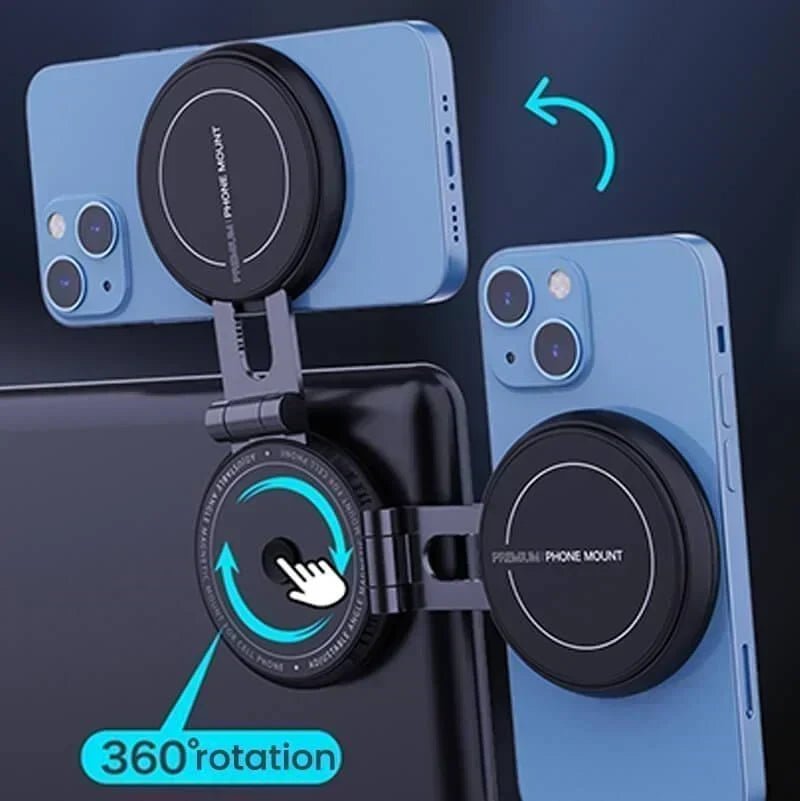
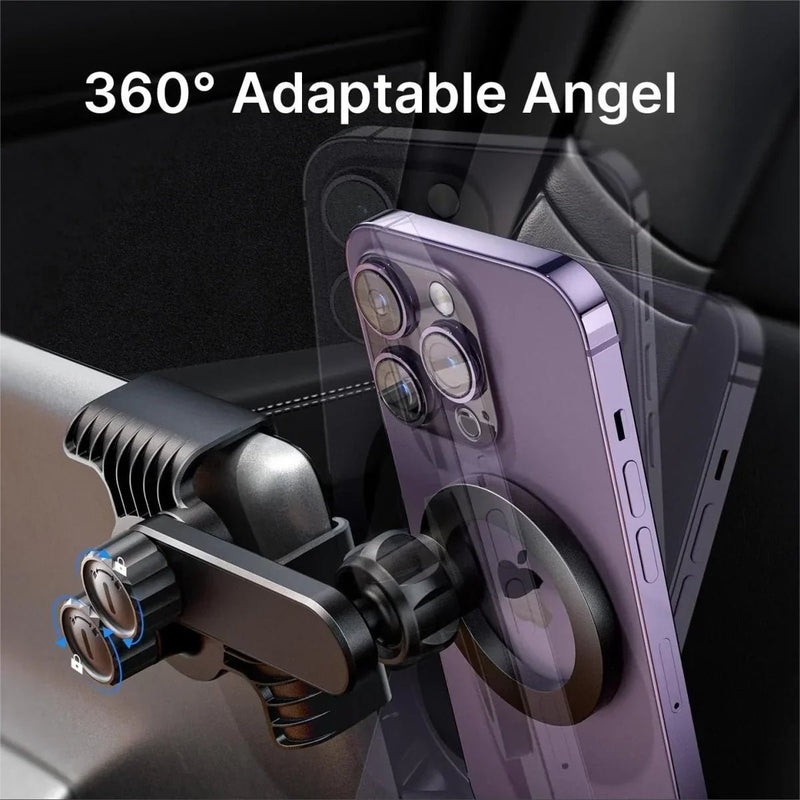
Na przykład, Uchwyt na telefon z ładowaniem bezprzewodowym MagSafe na kierownicę łączy magnetyczne mocowanie telefonu z ładowaniem bezprzewodowym. Jest zaprojektowany dla różnych konfiguracji Modelu 3 i Modelu Y i pozwala dostosować kąt telefonu dla łatwiejszego widoku.
Tego typu ustawienie może być przydatne dla kierowców, którzy regularnie używają telefonu do nawigacji i chcą, aby telefon pozostawał w stałej pozycji, zamiast leżeć płasko na podkładce ładującej. Odpowiednie ustawienie może również zależeć od modelu Tesli, preferowanej pozycji mocowania i sposobu korzystania z telefonu. Zobacz nasz przewodnik po najlepszych uchwytach na telefon do Tesli dla szerszego porównania.

Użyj uchwytu na telefon z ładowaniem przewodowym
Ustawienie ładowania przewodowego to kolejna opcja, jeśli wolisz połączenie kablowe.
Uchwyt na telefon MagSafe dla Tesla Model 3/Y jest dostępny z opcjonalną ładowarką OBD. To ustawienie jest zaprojektowane, aby utrzymać telefon zamocowany na desce rozdzielczej, zapewniając jednocześnie opcję ładowania przewodowego.
Dla wcześniejszych pojazdów Model 3, które nie mają takiego samego wbudowanego systemu ładowania bezprzewodowego jak nowsze wersje, T-Launch oferuje również podkładkę ładującą bezprzewodowo zaprojektowaną dla pojazdów Model 3 z lat 2017–2020.06. Obsługuje zarówno ładowanie bezprzewodowe, jak i ładowanie przez USB typu C i może utrzymać telefon w orientacji pionowej lub poziomej.
Odpowiednie ustawienie zależy od roku modelowego twojej Tesli, twojego telefonu i tego, czy bardziej zależy ci na prostym ładowaniu, ładowaniu przewodowym, czy na utrzymaniu telefonu w widoku do nawigacji.

Ostateczne myśli
Wiedza jak ładować telefon w Tesli polega głównie na wyborze między wbudowanym ładowarką bezprzewodową a połączeniem USB. Ładowanie bezprzewodowe jest wygodne w codziennym użytkowaniu, podczas gdy ładowanie przez USB zapewnia bezpośrednie połączenie przewodowe.
Jeśli twój telefon się nie ładował, najpierw sprawdź jego położenie, etui, przedmioty na podkładce ładującej, kabel i port USB. Pamiętaj również, że sprzęt do ładowania Tesli i lokalizacje USB mogą się różnić w zależności od modeli i lat produkcji.
Jeśli często używasz telefonu do nawigacji, uchwyt na telefon może uczynić konfigurację bardziej praktyczną, utrzymując telefon w zasięgu wzroku i łatwym do sięgnięcia podczas ładowania. Najlepszy wybór to ten, który pasuje do twojej Tesli, telefonu i codziennych potrzeb w prowadzeniu.
Przeczytaj więcej: Ładowarka do telefonu Tesla: Podkładka, Stojak, Wykończenie czy Kabel?